2.1.3. Android
Note
Developers wanted! To maintain this port, the build and implementing new features. See Android Development
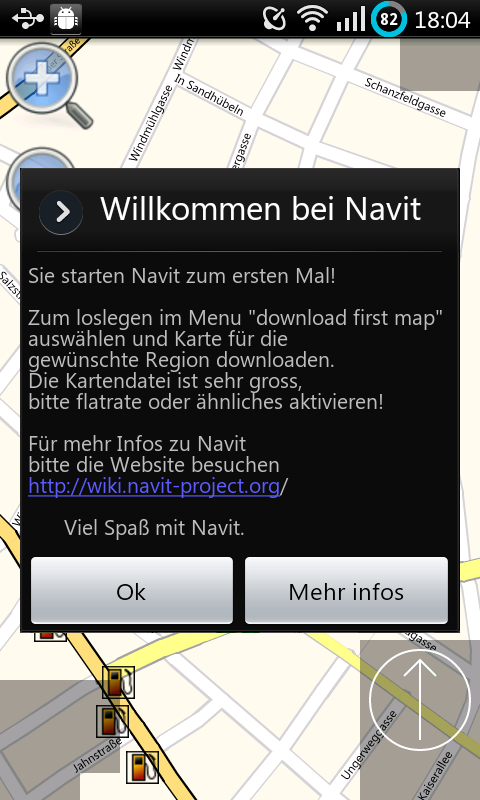 Navit is available on Android! Using the Internal
GUI, Navit enables complete offline routing anywhere
in the world using map data from OpenStreetMap. Note
that this is not an Android app in the traditional sense - it is a
direct port of Navit (with a couple of extra features for Android), so
isn’t as integrated with Android as you may expect from other apps -
bear this in mind when using it for the first time!
Navit is available on Android! Using the Internal
GUI, Navit enables complete offline routing anywhere
in the world using map data from OpenStreetMap. Note
that this is not an Android app in the traditional sense - it is a
direct port of Navit (with a couple of extra features for Android), so
isn’t as integrated with Android as you may expect from other apps -
bear this in mind when using it for the first time!
2.1.3.1. Installation
There are several ways of installing Navit to your Android devices:
From Google’s Play store, you can also subscribe to the beta program here
Install from the F-Droid Repository : Navit on F-Droid’’
Manually install from apk’s built nightly from the latest source code : Nightly Builds’’
Building Navit yourself from source : Build from Source’’
Manually installing from an apk means that you have the very latest features built into Navit, but requires you to install and update it yourself. Generally the beta at the playstore has the latest features as well.
2.1.3.2. Useful information
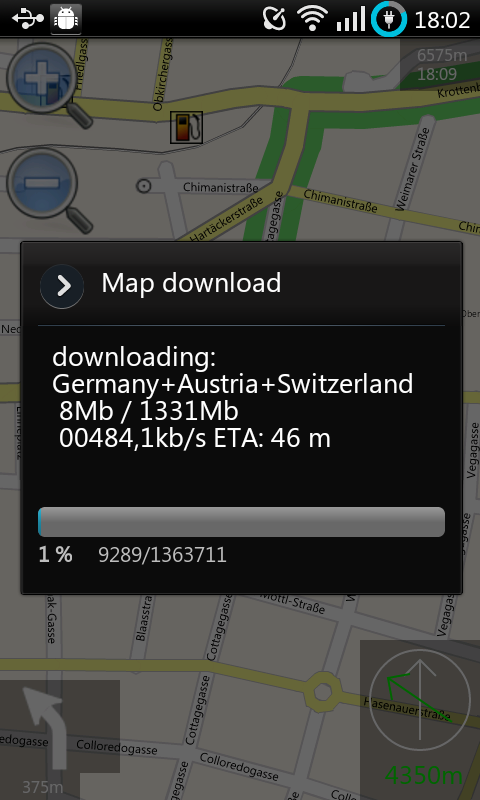
In-app map downloading
2.1.3.2.1. Maps
There are two ways to get a map into Navit.
Press your device’s Menu button, and choose Download first map. Maps will be greater than 50MB, so it’s best to turn on your wifi.
Download a map from the Navit Map Extractor, connect your device to your pc, choose Select to copy files to/from your computer on the device and save the downloaded map as navitmap.bin into the navit folder on your device.
2.1.3.2.2. Advanced configuration
When Navit starts, a copy of
/data/data/org.navitproject.navit/share/navit.xml matching your
display resolution is extracted from the apk. If you have root
permissions on your device, you can use this file as a starting point
for a customized configuration. Otherwise unzip the apk file and use the
xml file from the subdirectory res/raw/ which matches the display
resolution (ldpi, mdpi or hdpi). You can save your configuration as
/sdcard/navit/navit.xml which is then used instead of the one from
the data directory.
If you’d like to configure the initial view of the map (it should automatically center on your position if the on-board GPS has a fix) change the <navit center=… attribute to your home coordinates.
See Configuration for additional settings.
2.1.3.2.3. Layouts
Layouts can be found at our layout showcase
2.1.3.2.4. Keyboard
By default Navit uses the Internal keyboard for menu items which require text input from the user, such as POI search. To use your default Android keyboard instead, just press and hold your device’s Menu button until the keyboard pops up.
2.1.3.2.5. Launch via Google
When you click on a place in Google Maps, you can choose to navigate to it with Navit (assuming that there isn’t already a default navigation app set).
2.1.3.2.6. Bookmarks file
The bookmark.txt file is stored on the device at the location
/data/data/org.navitproject.navit/share/bookmark.txt
and each line in the file looks like
mg:0x112233 0x445566 type=bookmark label="Home" path="Home"
In the default configuration, you will need root access on your device to be able to see this file. But if you move the app to your SD card it will be available at /sdcard/navit, where you may use any file explorer app or access it from a PC using USB Storage mode, via either USB cable or wifi connection, or even Bluetooth file transfer.
Another way without the need of SD card or root access is using the Android Debug Bridge. If you installed the Android SDK on your computer, the following command transfers the bookmark.txt file from your device to the current working directory:
adb pull /data/data/org.navitproject.navit/share/bookmark.txt
It is also possible to transfer the changed file back to your device by using adb push. See 2 for a more detailed description of the adb client.
There is another option, which doesn’t need your Android device to be rooted, nor ADB. You just need to have SSHDroid installed. Start it and connect to it with ssh (on windows you can use putty) and then do a cd /data/data/org.navitproject.navit/share/ from the comfort of your keyboard equipped machine. You can then read the bookmarks.txt file (if need be just cat it to display, then copy/paste or whatever, and cat text back into it or what not). Note that you can also get to the right location with terminal apps, so there may be plenty of ways to actually get at this file without root and/or adb.
2.1.3.2.7. Get the log for debugging problems
There are two options here:
Install the Android SDK, run adb logcat and save the output to a file
Install an app like Log Collector and send the data via mail